AI Chat Navigation
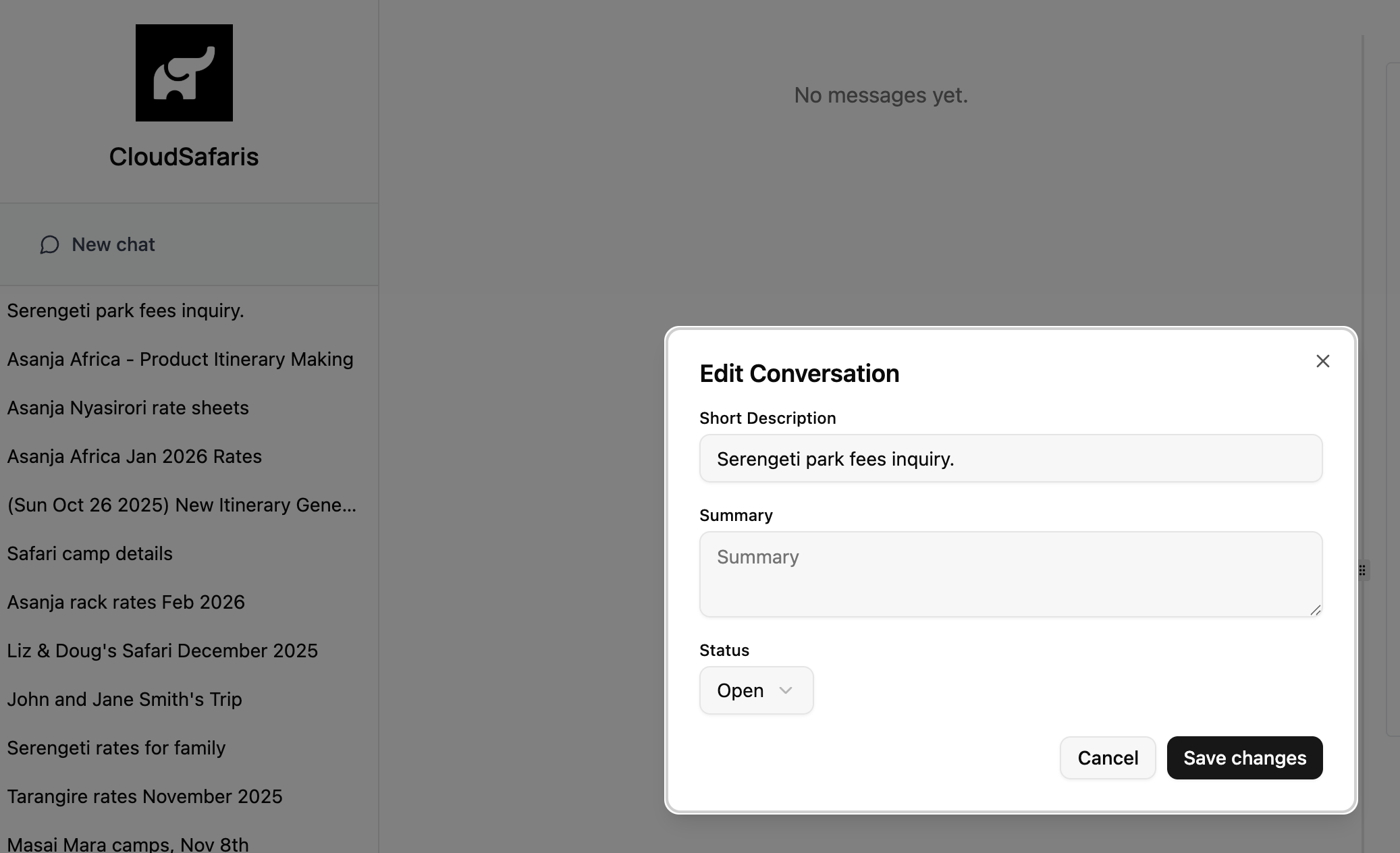
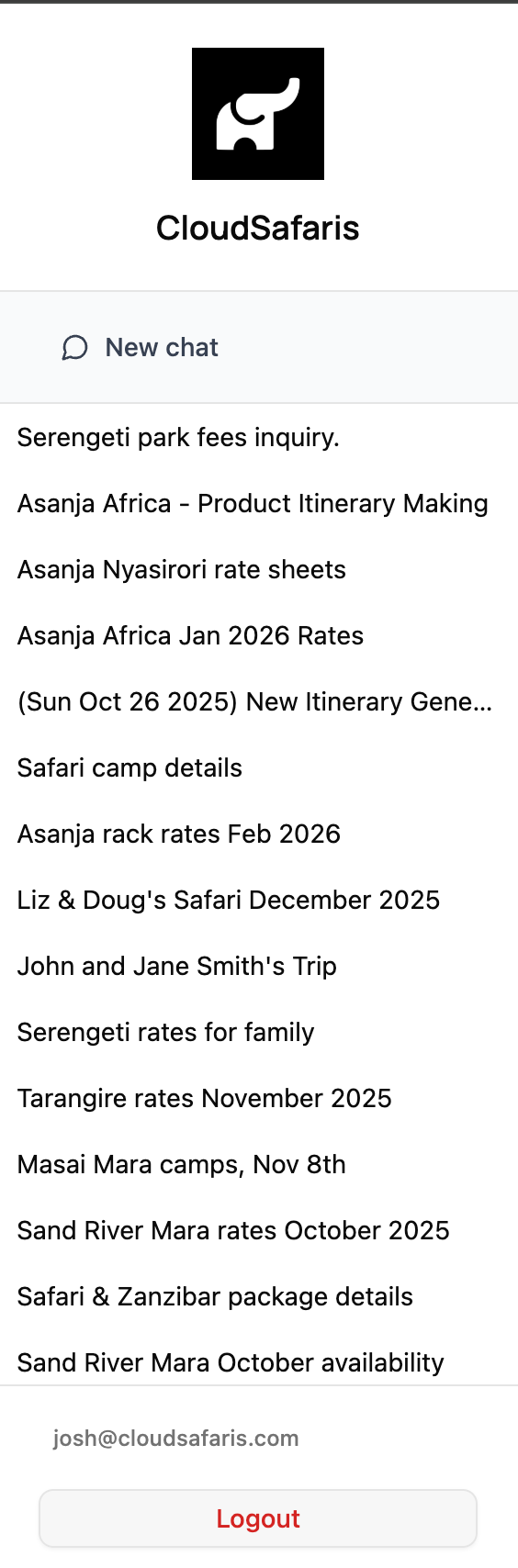
On the left side of the AI Chat interface, you’ll find the Navigation panel.Note: Your navigation layout may differ slightly from the screenshot above.The navigation panel is automatically populated based on your past conversations with the AI Chat. Each line item represents a separate conversation thread.
New Chat
To start a new conversation, click “New Chat.” This creates a fresh conversation thread where you can ask new questions or generate new itineraries. We recommend using New Chat when:- You want to start a new query or itinerary.
- The AI Chat gets stuck or provides unrelated responses (to reset context).
- You want to keep separate topics or client requests organized.
Conversations
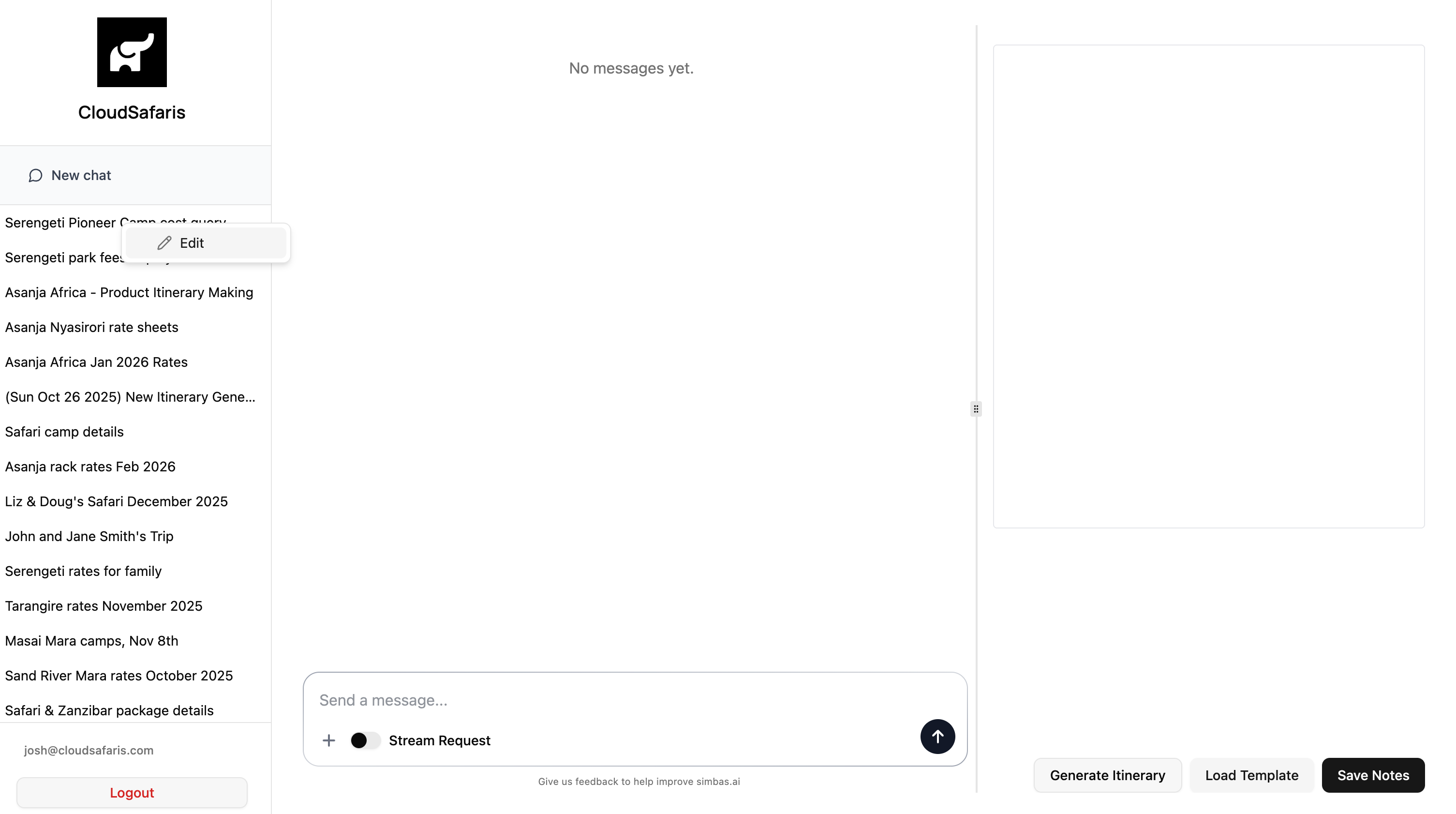
Each line item in the side panel represents one of your past AI Chat conversations. When you start a new conversation using the “New Chat” button, the system will automatically assign it a default label to help you identify it later. If you’d like to rename or modify a conversation:- Right-click (or double-tap on Mac) the conversation title.
- Select “Edit” from the menu to update the name.
- Edit the conversation label (to rename or clarify the topic)
- Add notes for internal reference
- Archive the conversation if it’s no longer active