Navigating to Supplier Pricing
To access this section, go to the dashboard: 👉 https://simbas.ai/dashboard Then, click “Supplier Pricing Data” in the navigation menu.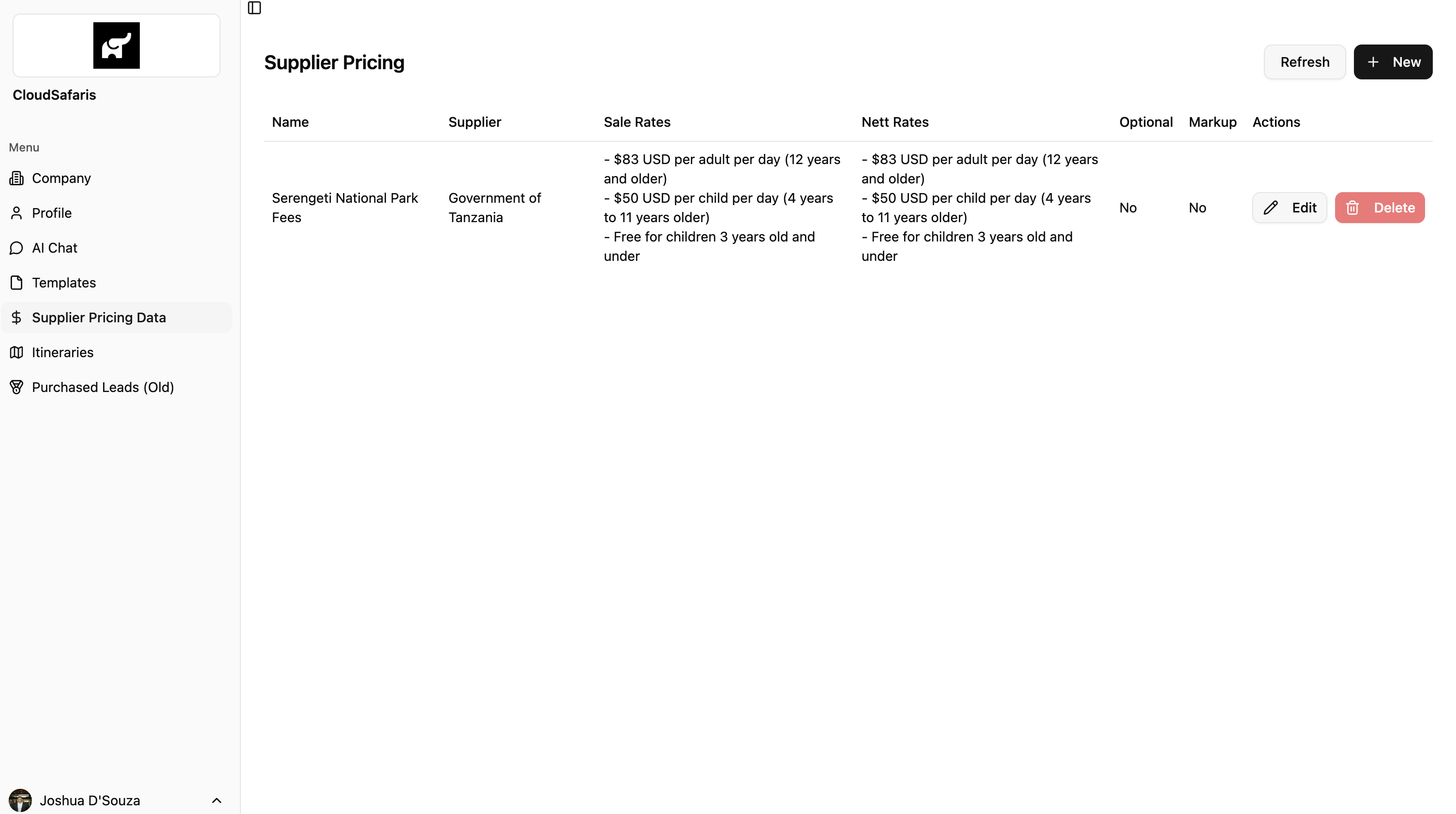
Adding Supplier Pricing Data
To add new supplier pricing data, click “+ New” in the top-right corner of the screen. This will open a modal where you can enter all relevant supplier pricing details.
Name
Name
This is the main identifier for the supplier pricing data.Choose a clear, descriptive name so you can easily identify and retrieve it through the AI Chat.
Example: If you name the entry “Serengeti Park Fees”, you can simply ask the AI Chat for “Serengeti Park Fees” to access that information.
Supplier Name
Supplier Name
This is the name of the supplier associated with the pricing data.
Example: If the data belongs to Miracle Experiences (e.g., Balloon Safari), enter “Miracle Experiences” here.
Sale Rates
Sale Rates
These represent the public-facing (rack) rates for the supplier’s pricing data.When you ask the AI Chat for “public rates,” it references these sale rates — serving as the upper bound for pricing.You can write this information as plain text and organize it using bullet points for clarity.
Nett Rates
Nett Rates
These are the private (nett) rates charged by the supplier when invoicing you.When you ask for “private rates” in the AI Chat, it will display these nett rates — helping you calculate profit margins and track your actual costs.Like sale rates, this information can be entered as plain text, preferably formatted with bullet points.
Pricing Rules
Pricing Rules
Pricing rules define how a particular rate or item should be applied or calculated.Examples include:
- Minimum number of travelers required to purchase the item
- Advance purchase requirements
- Seasonal availability (e.g., only valid during certain months)
- Dependencies (e.g., must be purchased with another item)
Supplier Reservation Email
Supplier Reservation Email
Enter the email address used to make reservations or bookings with the supplier.
Booking Information Required
Booking Information Required
Specify the information needed to complete a booking for this item.Examples include:
- Number of adults and children
- Ages of children
- Honeymoon or special occasion details
- Full buyout options (e.g., private hot air balloon)
Optional Checkbox
Optional Checkbox
Indicates whether the supplier item is mandatory or optional.This setting is primarily used for the upcoming Dynamic Itineraries feature and does not currently affect AI Chat functionality.
Markup Checkbox
Markup Checkbox
Determines whether the item should be marked up or sold as-is in future Dynamic Itinerary releases.
Example: For Government Park Fees, you might choose not to apply a markup.
Fallback Nett Markup
Fallback Nett Markup
This field defines a default markup to apply when no Sale (Rack) rates are available.It allows you to automatically adjust the Nett Rates by either: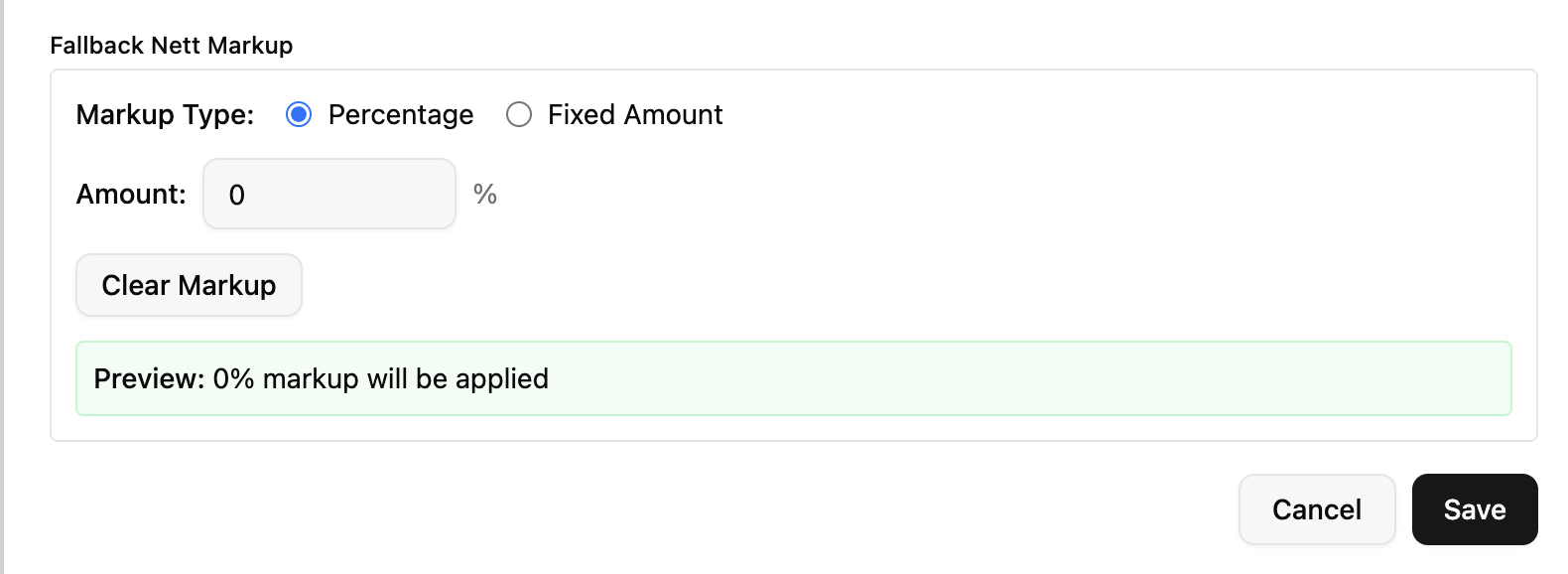
- A percentage (adds the specified % on top of the Nett Rate), or
- A fixed amount (adds a set value to the Nett Rate)
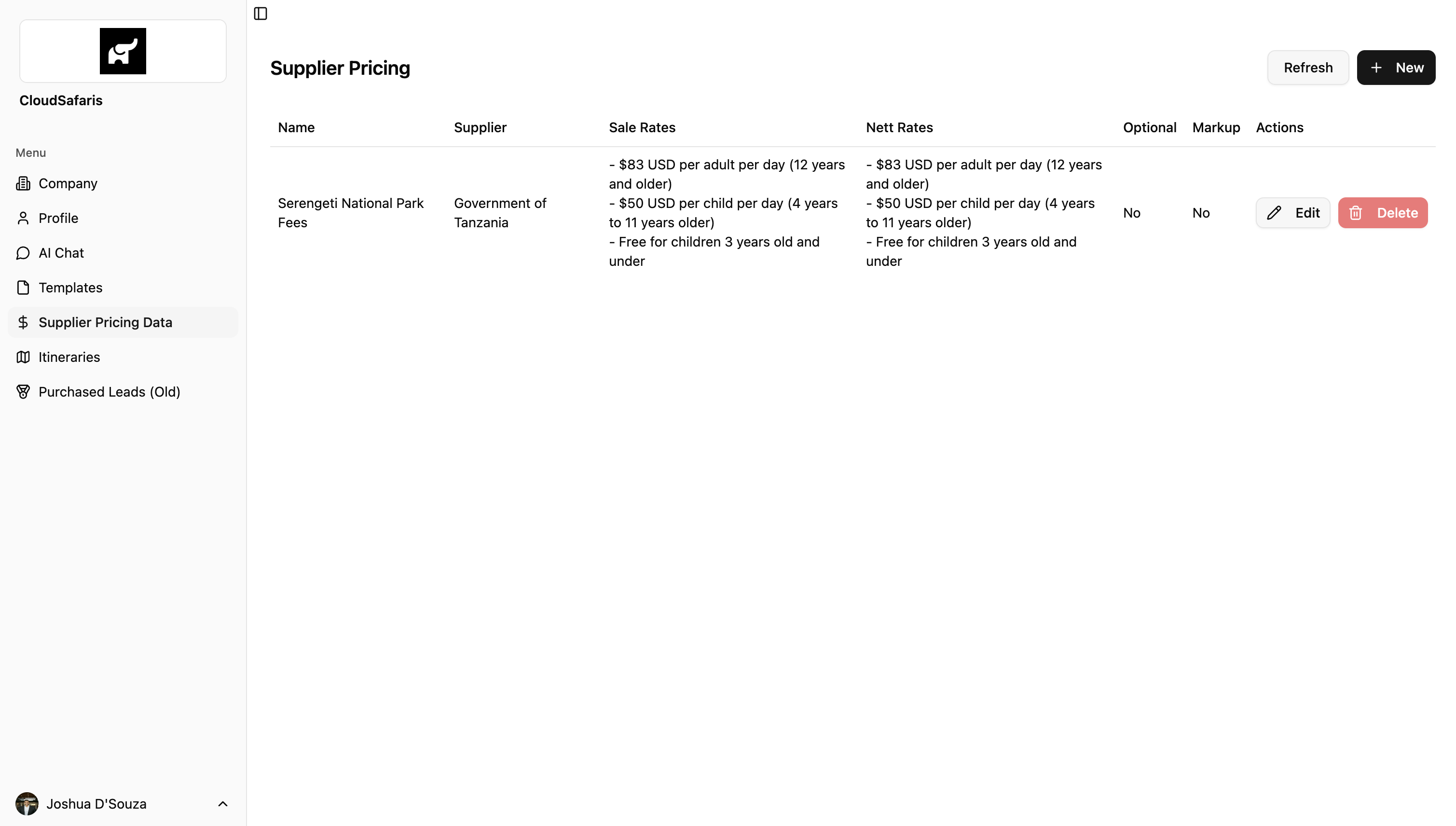
Example: The screenshot below shows Serengeti National Park Fees added to the Supplier Pricing Data table.
Accessing Data from the AI Chat
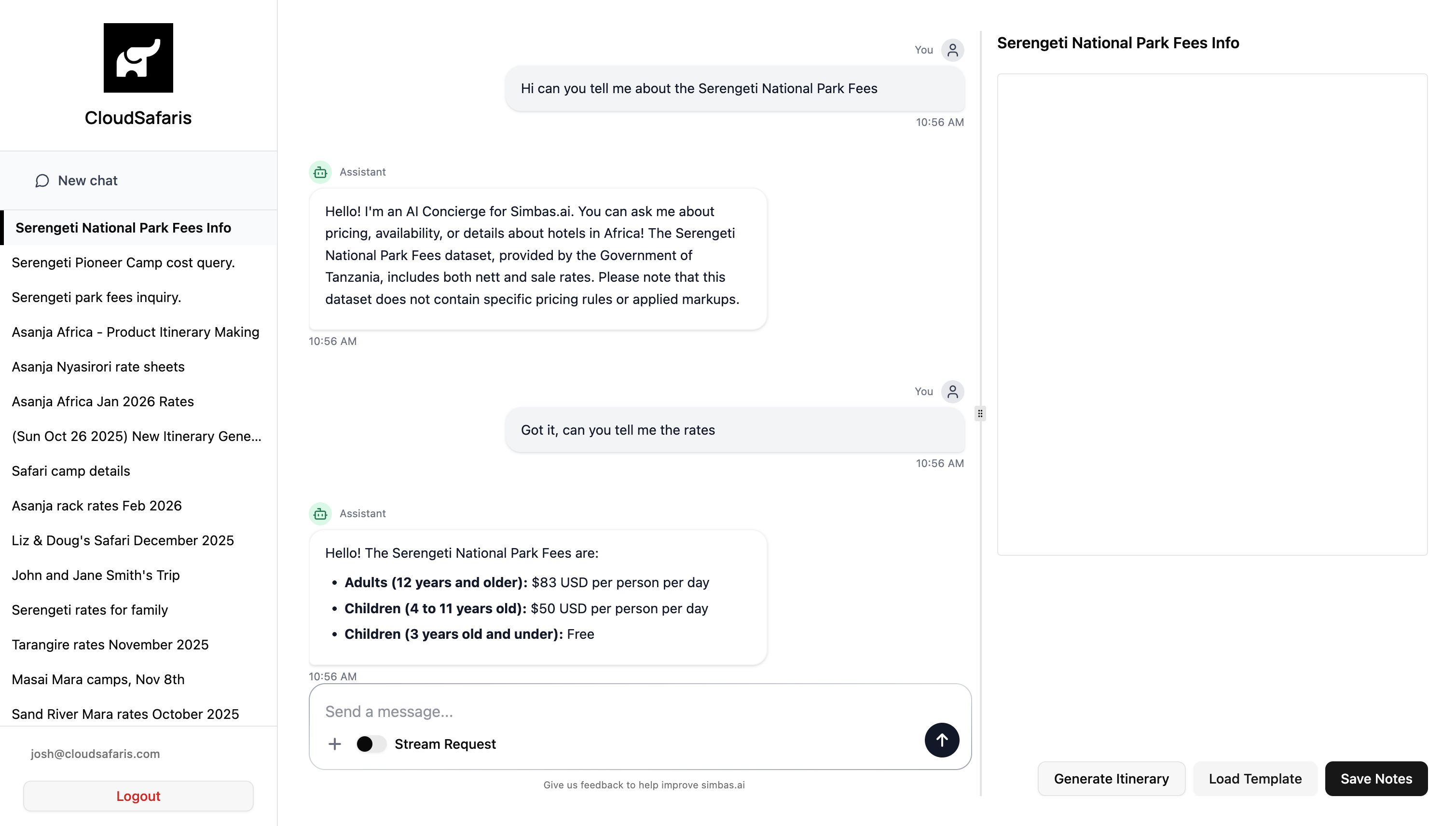
To retrieve supplier pricing data through the AI Chat, simply search by name. An exact match isn’t required — the closer the name, the easier it is for the system to identify and return the correct data. Once located, you can ask follow-up questions to access any or all of the details saved when creating that supplier pricing entry.Example: In the screenshot below, the supplier pricing data titled “Serengeti National Park Fees” is searched within AI Chat to display all related information.