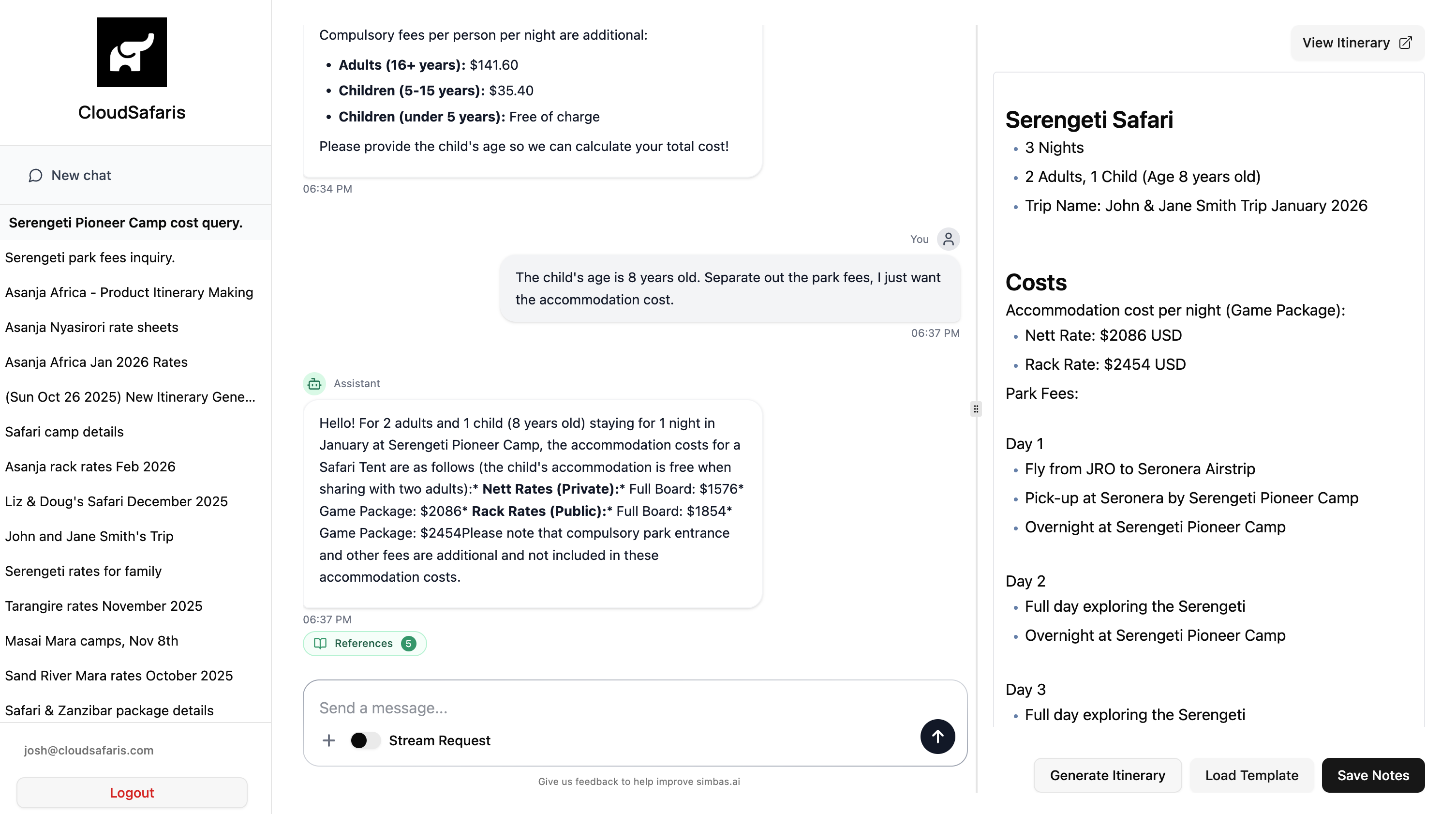
- Keep track of key information shared during chats
- Draft and organize trip details or client notes
- Generate complete itineraries directly using AI
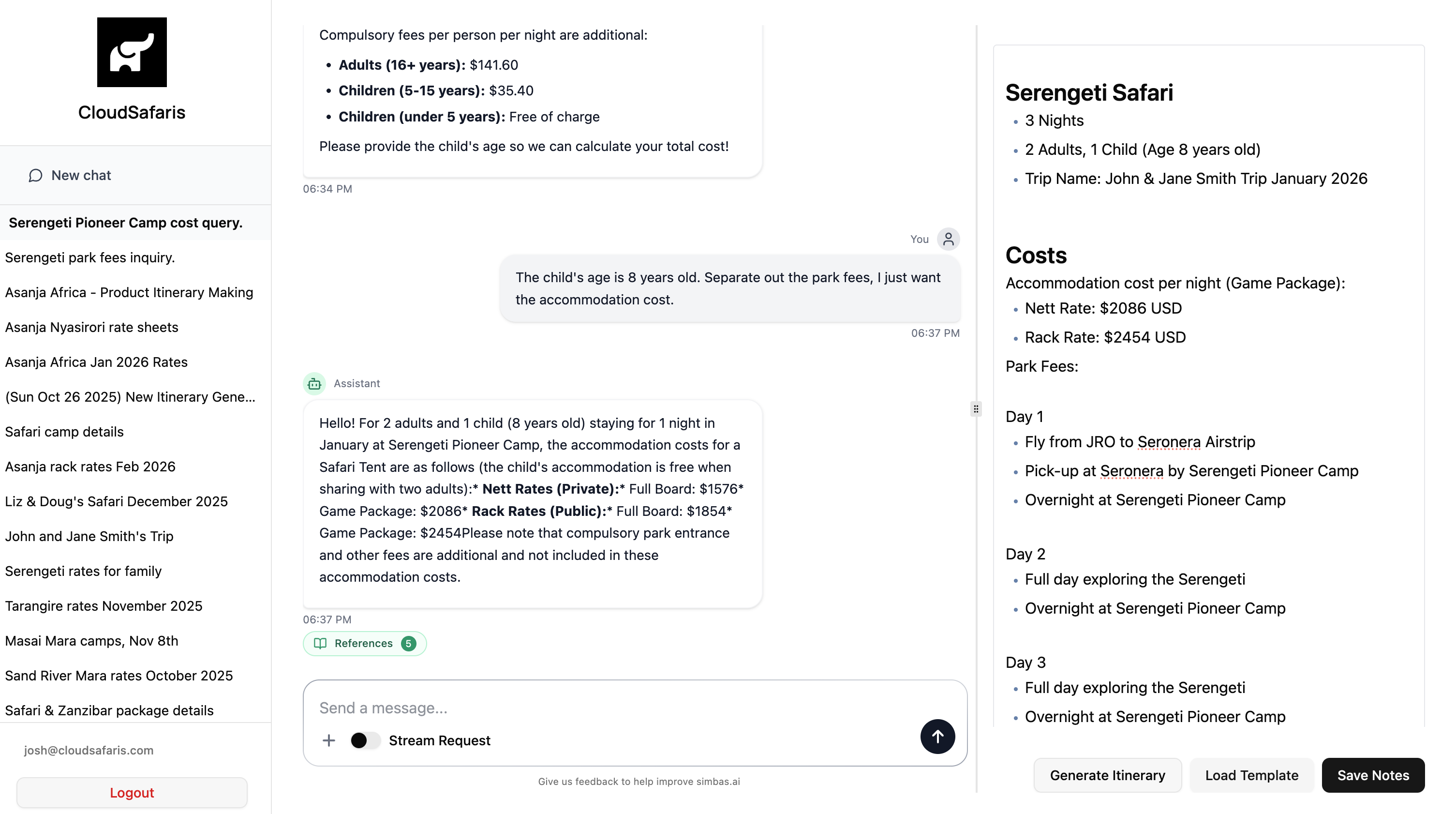
Notepad Formatting
The Notepad supports Markdown formatting, allowing you to organize and style your notes for better readability and structure. Below is a quick overview of the main Markdown types you can use when filling out the Notepad.Please note, Markdown is not mandatory, but can be used to keep the Notepad organized.
-
Headings
- Use # for hadings (1-6 levels)
-
Bold & Italic
-
Lists
Notepad Templates
To simplify note-taking and quickly reference key information, you can use the Templates feature within the Notepad. Click “Load Template” to access your list of saved templates and insert them directly into your notes. This helps you maintain consistency, save time, and organize your information more efficiently.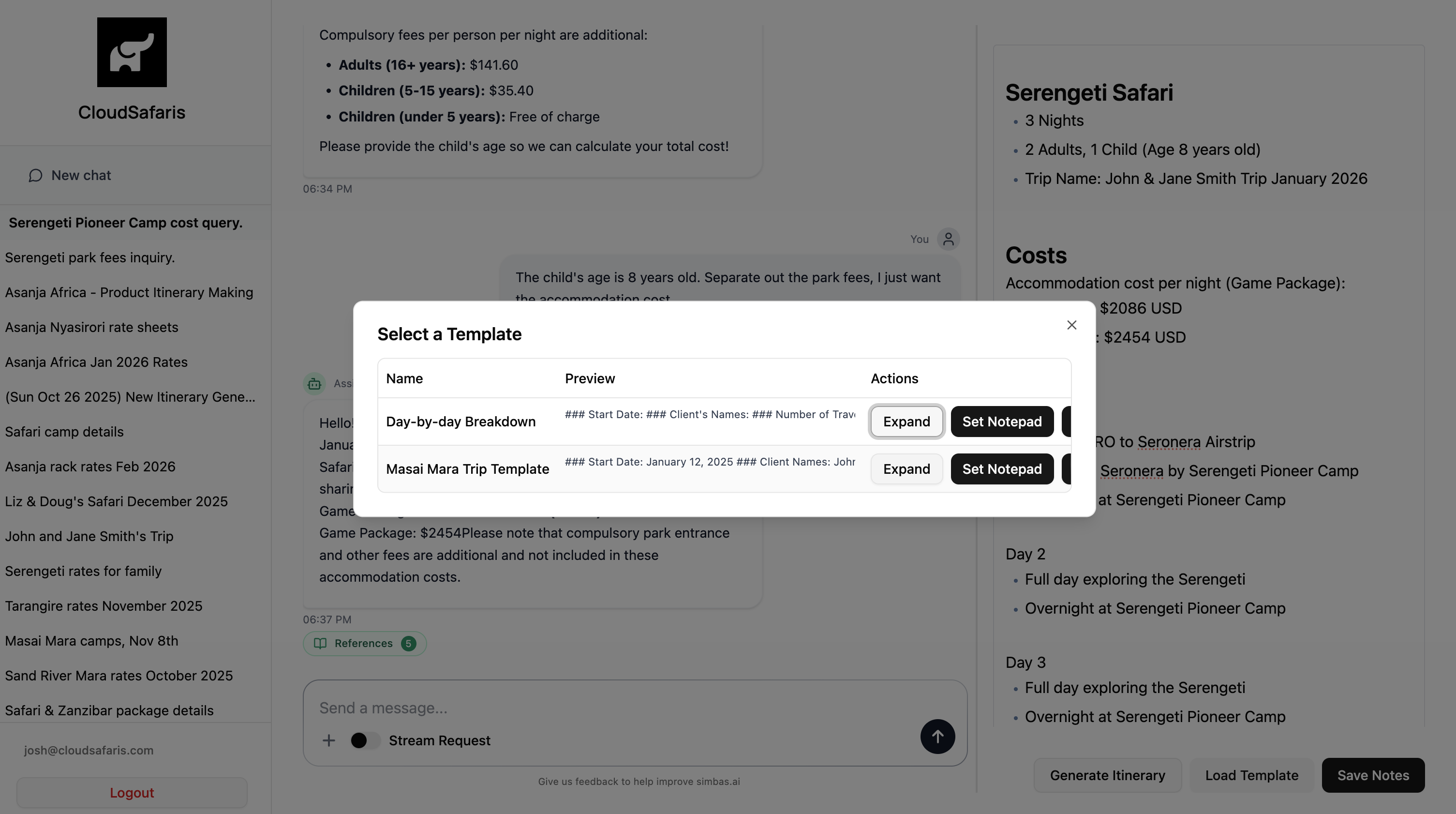
Loading and Applying Templates
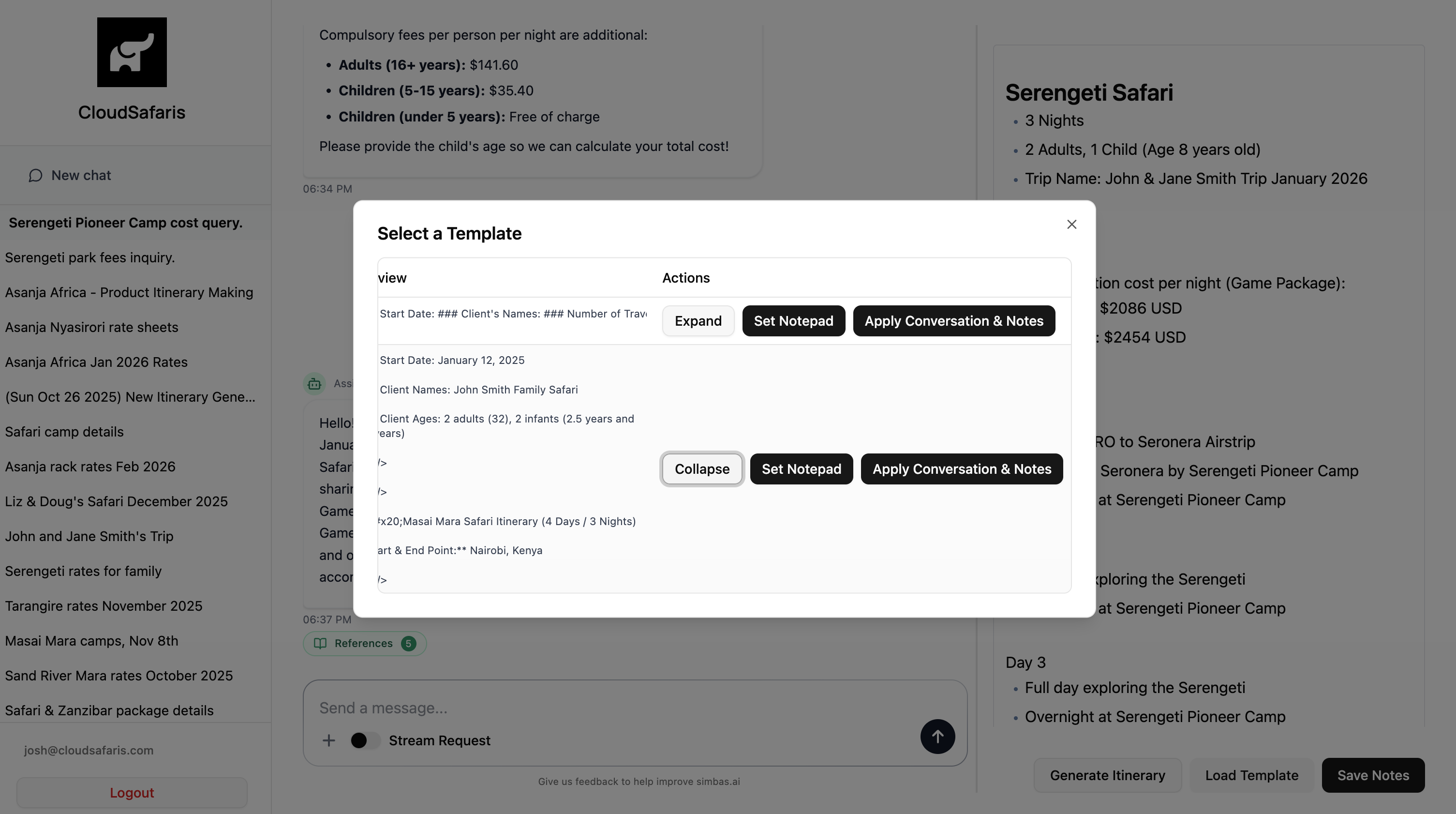
When you click “Load Template,” a modal will appear displaying your saved templates along with several available actions:Expand
Expands the preview of a selected template, allowing you to review its content before applying it to the Notepad.Set Notepad
Adds the selected template to the end of your current Notepad content. Use this when you want to insert a template without overwriting existing notes. Apply Conversation & Notes This advanced option uses AI to automatically integrate the current chat conversation with your chosen template.**Example: **If you select a template for a 3-day Serengeti National Park safari, the system will analyze your ongoing chat and fill in relevant trip details — producing a comprehensive itinerary or structured notes directly in the Notepad.
Saving the Notepad
To save your notes, click “Save Notes” at the bottom-right corner of the Notepad section. This action preserves the current state of your Notepad for that specific conversation, ensuring all your edits and references remain accessible later.Generating an Itinerary
If your Notepad contains a day-by-day breakdown or a general trip outline, you can generate a complete itinerary using AI. Click “Generate Itinerary” to begin. The system will process your notes and automatically create an itinerary — this typically takes 2 to 5 minutes to complete. Once the itinerary is ready, a “View Itinerary” button will appear in the top-right corner of the Notepad section. Click this to open and review the generated itinerary.